
Batch Shipments with ShipTime
ShipTime provides two powerful tools to help businesses process multiple shipments quickly and efficiently. Whether you are sending identical packages to several customers or managing a high volume of individual orders with unique details,
ShipTime’s batch shipping tools make it easy to Ship Smarter and save valuable time.
Batch Shipment Options
ShipTime offers two ways to process batch shipments:
1. Manual Entry
This option uses your saved Address Book and allows you to create several shipments with identical dimensions, weights, and selectable shipping options. Ideal for repeat shipments, subscription boxes, marketing kits, or seasonal outreach.
2. CSV Upload
This option allows you to upload a formatted CSV file with complete details for each shipment. Every shipment can have different dimensions, services, and options.
Your account must be activated to use CSV Upload. For details, contact support@shiptime.com or your ShipTime Account Manager.
Note: Both methods are available for domestic shipments within Canada only.
Getting Started with Batch Shipments
From your dashboard, select Batch Shipment and then choose which method you would like to use.
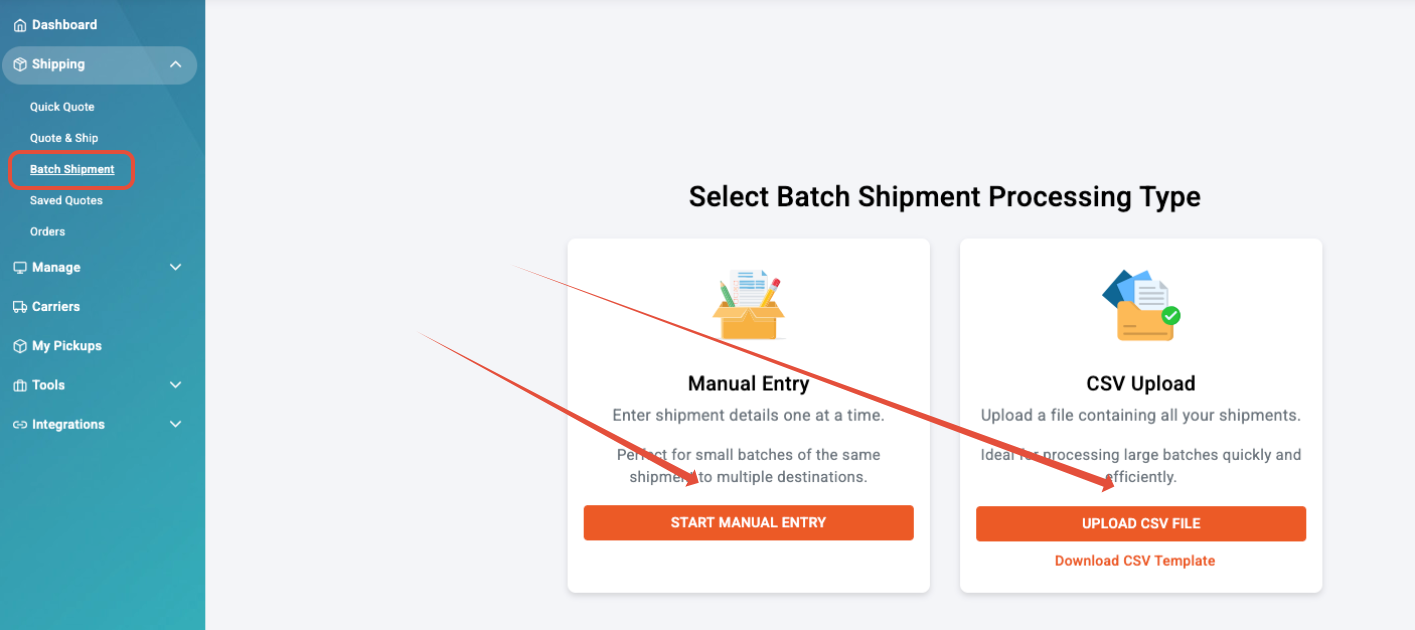
Manual Entry
Click Start Manual Entry to be taken to the Shipping Options page. If you need a deeper walkthrough, you can view the detailed guide here: Batch Shipment - Manual Entry
CSV Upload
The CSV Upload option is perfect for businesses managing large-scale, variable shipments.
Step 1: Download the Template
Download the Batch-Shipment-Customer-Instructions Template and create a new CSV with full details for each shipment. Make sure all required fields are completed and include a header row.
Example -

Step 2: Upload Your CSV
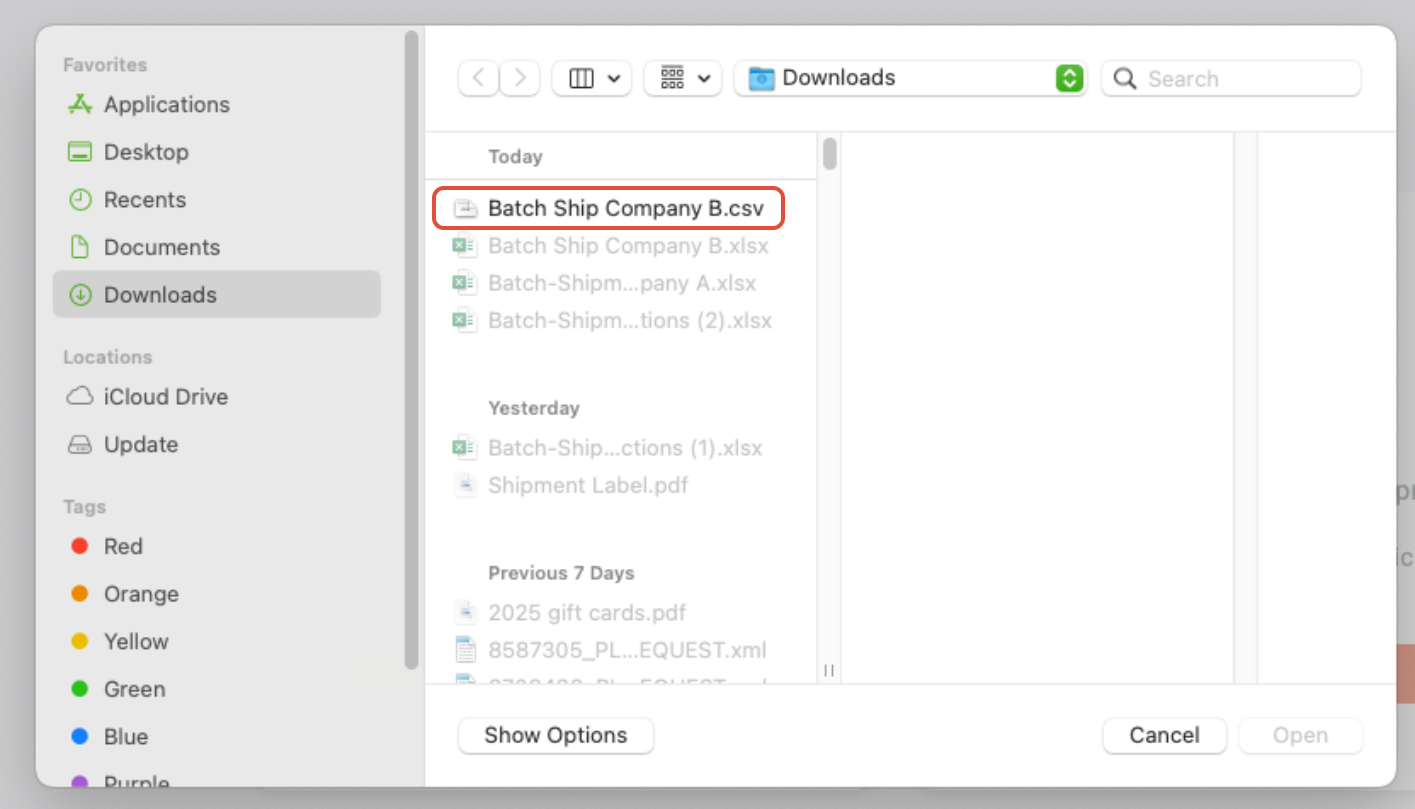
Click Upload CSV file, select your document, and click Open.
Step 3: Review and Resolve Errors
If any errors are detected, you will see a warning message showing the affected line numbers.
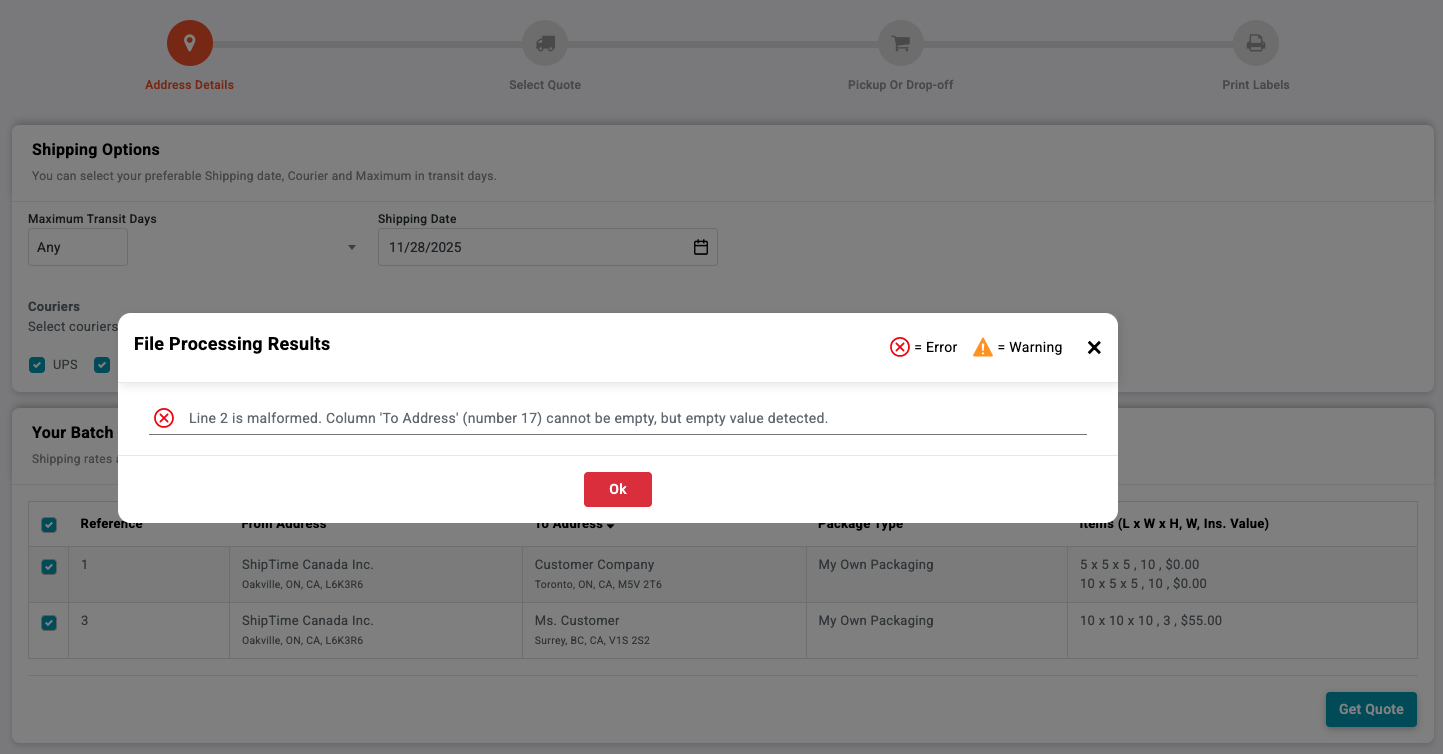
You can either:
Fix the issues in the CSV, save, and re-upload, or
Ignore the incorrect lines and continue with the valid ones.
Step 4: Shipping Options
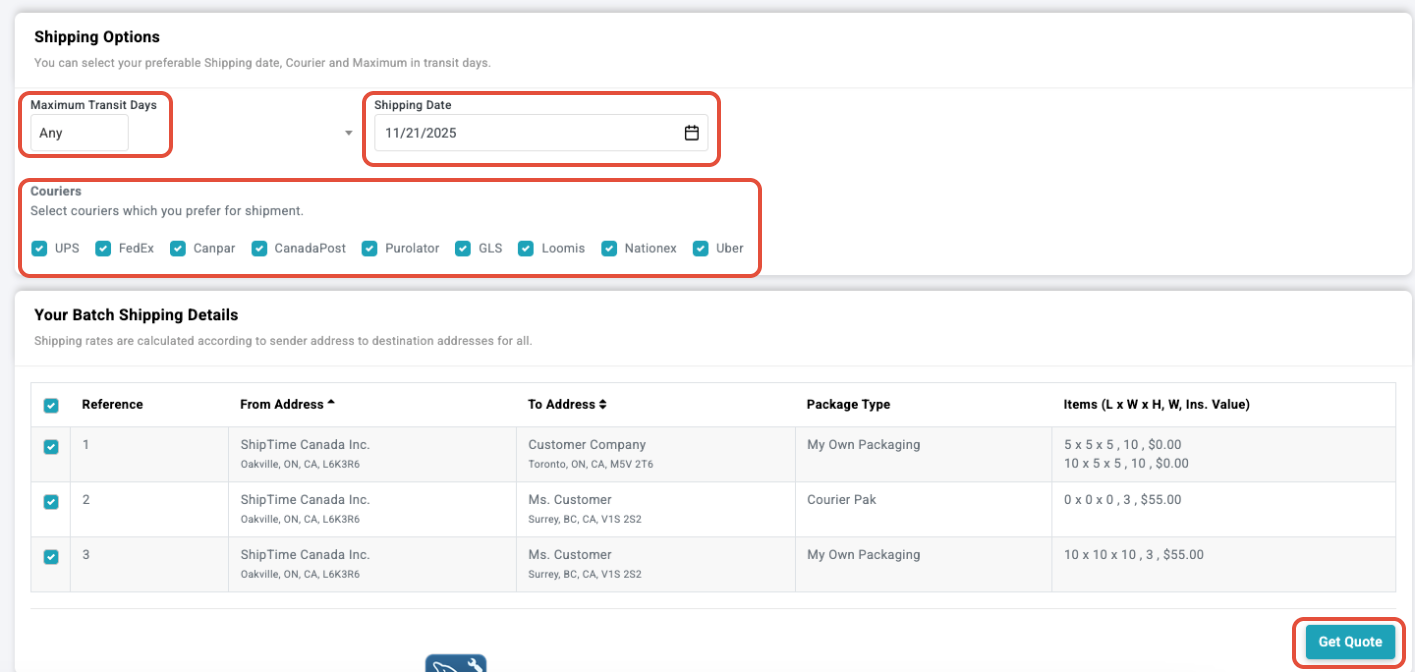
After uploading, you will be taken to the Shipping Options page.
Select preferences such as shipping date or carrier options, then click Get Quote.
Step 5: Review Carrier Quotes
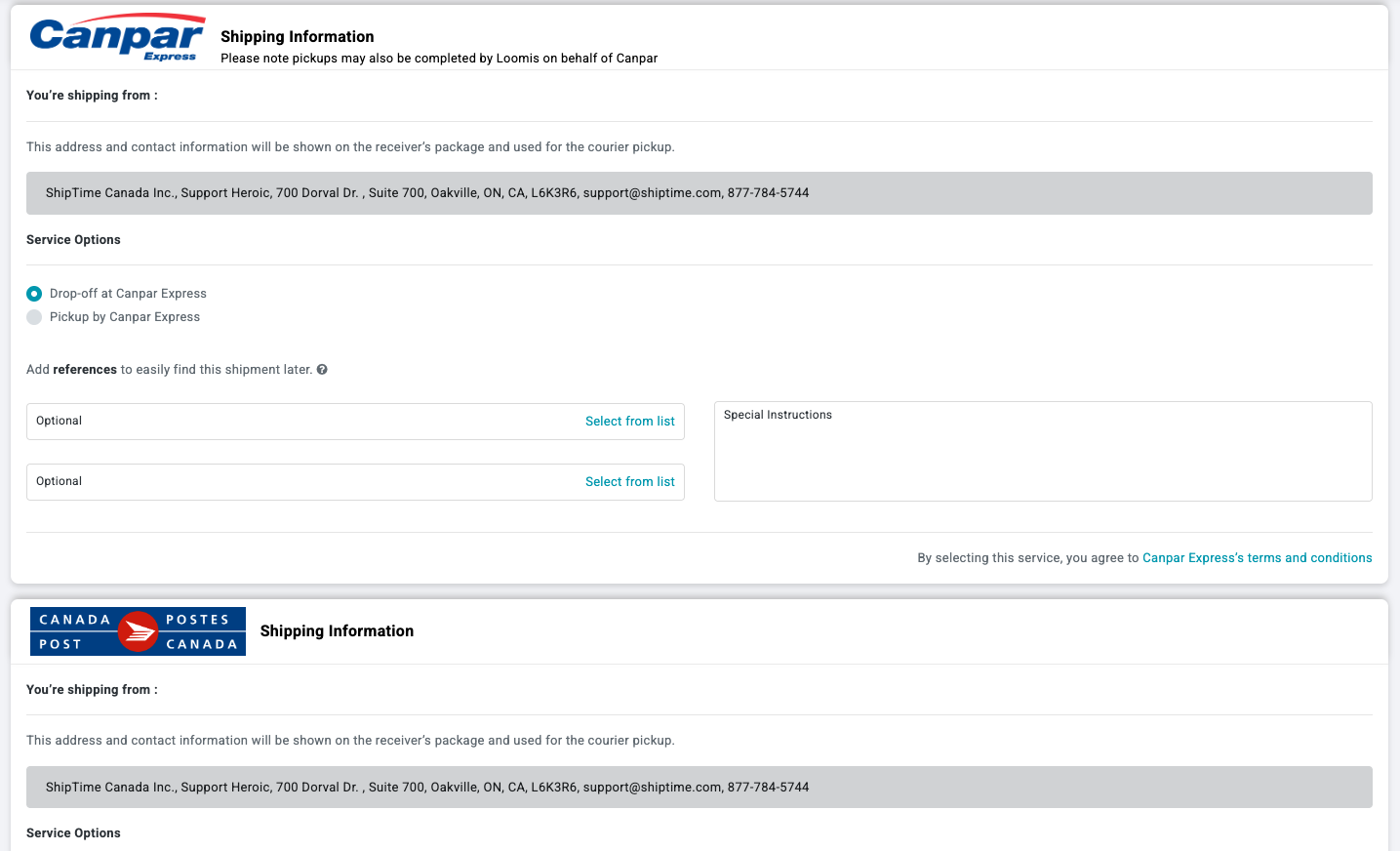
Quotes for each address will display. Once confirmed, select Pick-up or Drop-off.
The selected option applies to all shipments using that carrier.
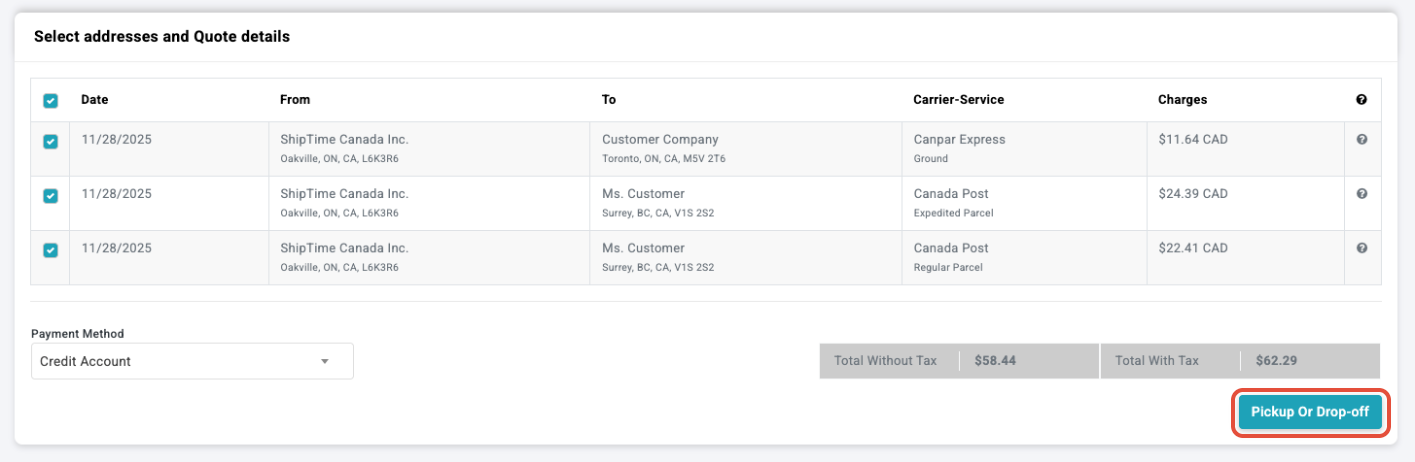
Step 6: Complete Your Batch
Click Place Bulk Shipment to proceed.

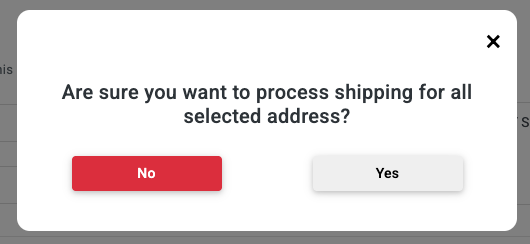
A pop-up will confirm your action. Select Yes.
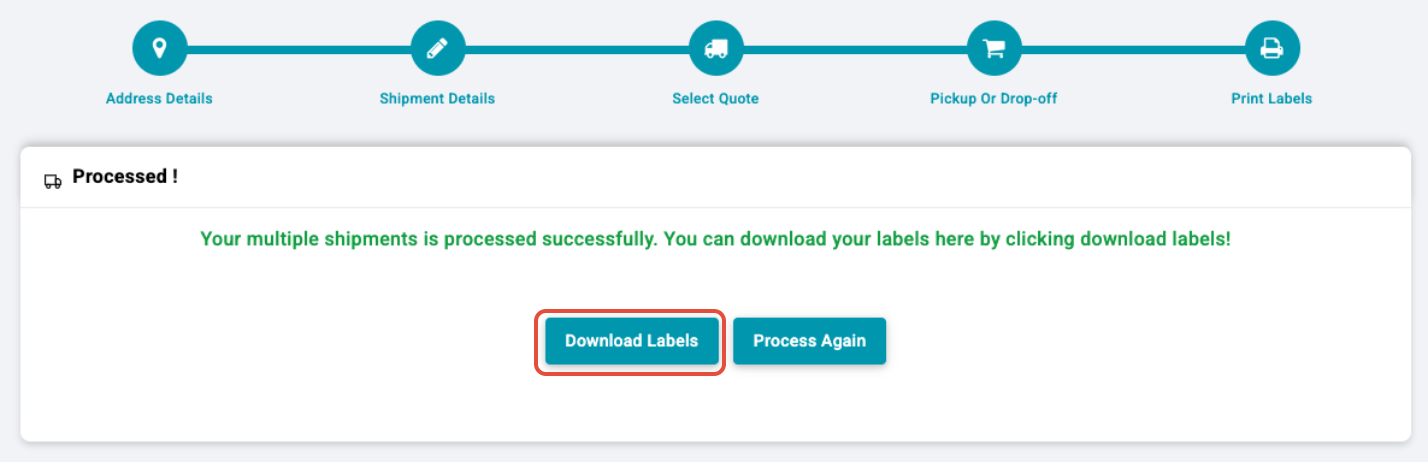
Your labels will be generated and ready to download in a single file for easy printing. Click Download Labels
Best Practices and FAQs
For the best batch shipping experience:
Keep all fields within the 40-character limit
Avoid commas in any field to prevent upload errors
Use the correct package type codes:
PACKAGE = My Own Packaging
LETTER = Courier Envelope
ENV = My Own Envelope
PAK = Courier Pak
Batch shipments are available for Canadian domestic shipments only
Follow the formatting in the provided templates to reduce errors
Downloading labels as a single PDF file is only available from the Download Labels page. If not selected, individual labels per shipment may be downloaded from History & Tracking.
When creating batches please check your email options in Settings - Preferences. If Shipment creation emails is selected, you will receive a separate email for each shipment in the batch.